Shadowrocket
App Store Download and Purchase Guide
Paid app, one-time purchase, available only on the App Store.
Check your purchasing account's storefront, then verify the app's identity.
- Developer Shadow Launch Technology Limited
- App ID 932747118
- $2.99 one-time purchase on the US storefront
- For iPhone and iPad
Check the App Store listing for pricing, system requirements, and purchase availability.
Storefront and purchasing account
Shadowrocket is currently unavailable on the mainland China App Store. If you can't find it, check the country or region of your purchasing account rather than trying different search terms. Your Apple ID's country or region determines which storefront you see; your device's language, network connection, and physical location do not replace this check. The button above links to Shadowrocket's US App Store page, but actual availability depends on your account's storefront and device compatibility.
Check your country or region on your device
Open Settings, tap your Apple ID at the top, go to Media & Purchases, choose View Account, then check Country/Region. If prompted, complete identity verification before continuing. Check the account used for media purchases, which may differ from the account used for other device services. Note the country or region shown, then return to the App Store and check whether the product is available in that storefront.
To find Apple's official option for changing your region, follow Settings → Apple ID → Media & Purchases → View Account → Country/Region, then use the option shown on your account page. Whether a change is available, and whether you need to address your balance, existing subscriptions, payment method, or family account status, depends on the prompts Apple displays at the time. Read the account guidance before proceeding. Changing your device language does not change your purchasing account's storefront.
If the product page says the app isn't available in your country or region, that's a storefront visibility issue; it doesn't mean the app has been discontinued. If the page opens but payment fails, follow the payment prompt to check your account status and payment method. Check app availability and transaction completion separately to avoid repeated purchase attempts before confirming your storefront.
Shadowrocket authenticity checklist
Verify the listing on the App Store, then use the official screenshots to identify the app after installation.
Shadowrocket
App Store app ID: 932747118
Chinese users sometimes refer to Shadowrocket by a nickname, but similar names or icons in search results are not enough to identify the app. Before buying, check the developer name, official icon, and app ID together. If any detail doesn't match, return to the intended product page and verify it before proceeding to payment.
- Developer: Check the developer or provider shown on the product page. It should be Shadow Launch Technology Limited. Read the full name rather than relying on a shortened search result.
- Official icon: Compare it with the official icon on this page: a blue-and-purple outlined rocket on a white background. The icon is one clue, not a substitute for checking the developer name and app ID.
- App ID: The product URL includes
id932747118. A similarly named product with a different ID is not the app described here.
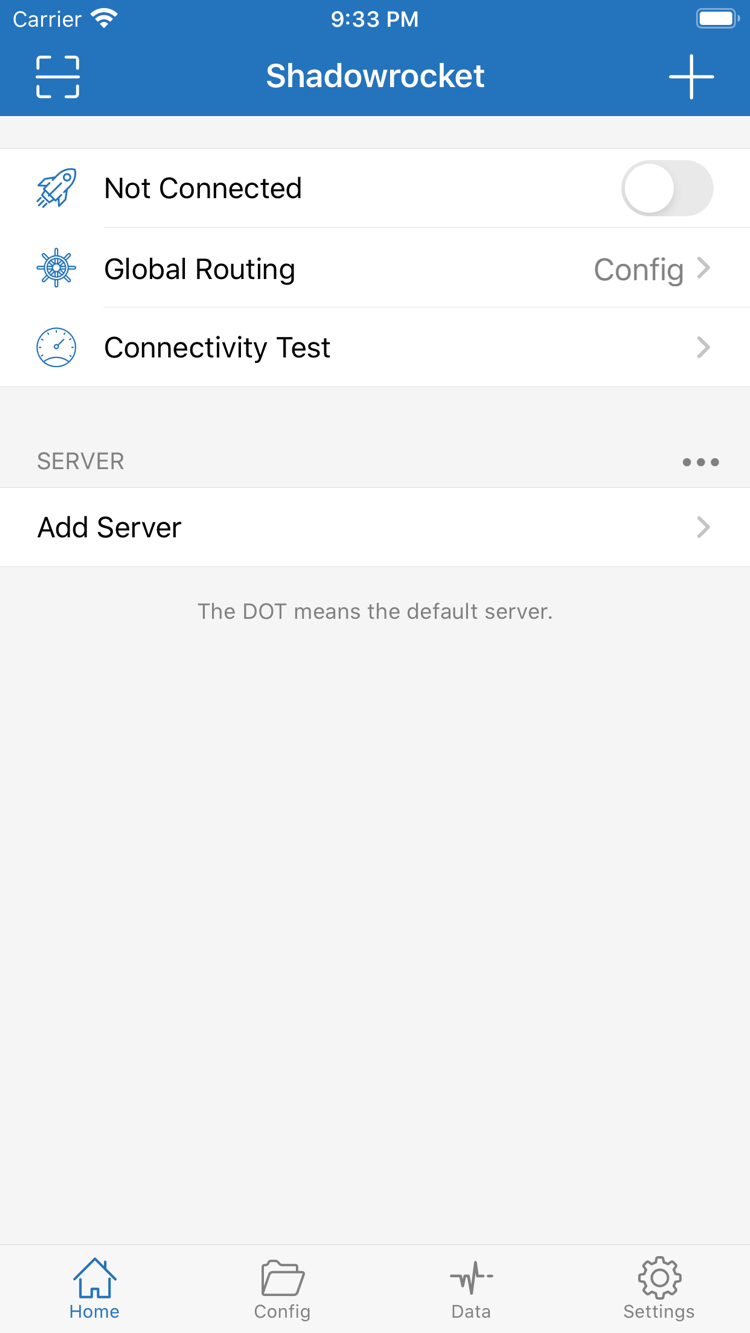
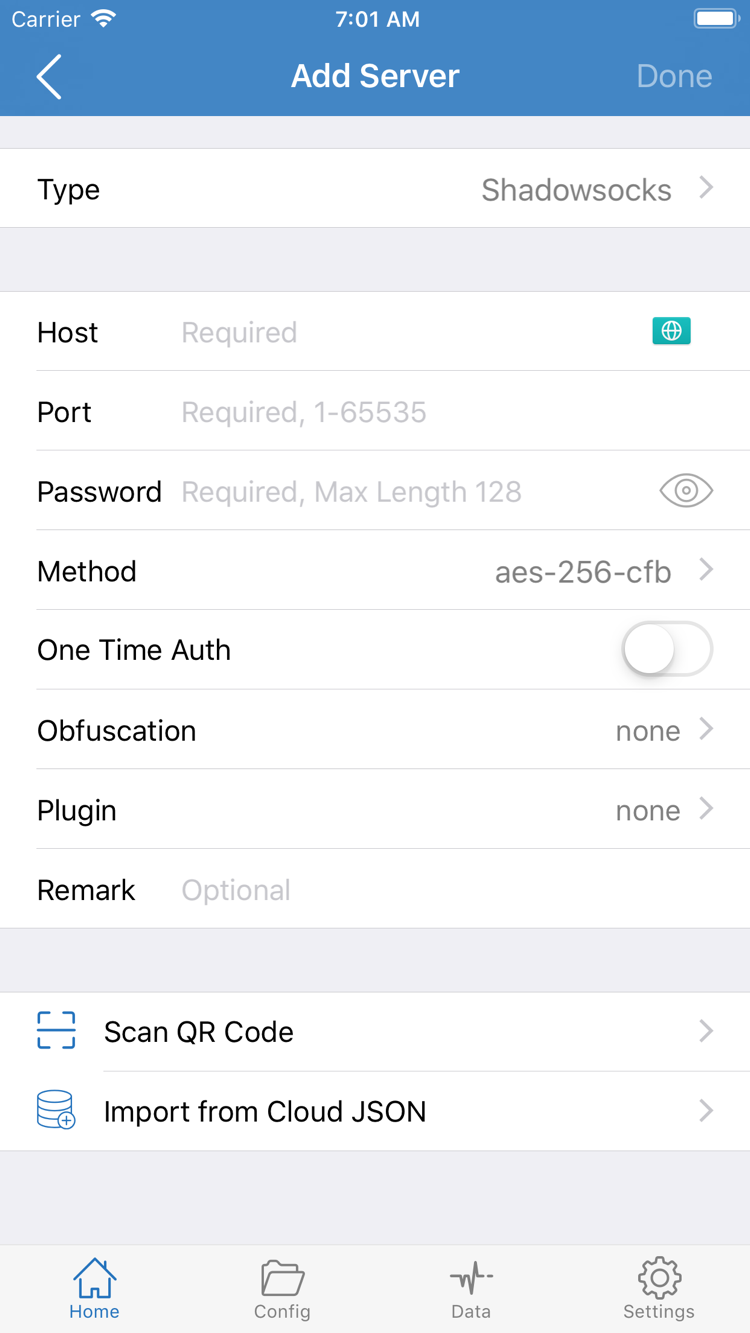
The two images alongside this text are official screenshots uploaded to the App Store by the developer. Home shows the main connection switch, Global Routing, Connectivity Test, and the SERVER group. Add Server shows the fields for entering server details. Screenshots can help you locate features, but the interface may vary by device, system language, or app update. Differences in layout or language alone do not indicate that the app is a different product.
After installation, seeing Not Connected on Home doesn't mean the purchase failed; it means no connection is currently established. In Add Server, fill in Type, Host, Port, Password, and Method using server details you already have. Installing the app and connecting to a server are separate steps. Missing connection details don't mean you downloaded the wrong app.
iPhone installation and first launch
Open the Shadowrocket App Store product page on your iPhone. After verifying the three identifying details, check the listed price and compatibility. Refer to the App Store listing for system requirements; don't rely on your device model or outdated guidance elsewhere. If the page shows Purchased or a cloud icon, check your purchase history before downloading again. If it shows a price, first confirm that you're using the original purchasing account.
Make your first purchase through the App Store's system purchase screen, and confirm the amount and payment account. After authenticating, wait for the download and installation to finish, then open Shadowrocket from the Home Screen. If progress stalls, check for an App Store prompt about payment, network access, or storage. You don't need to configure rules or change server fields before installation is complete; those steps won't resolve an App Store download issue.
VPN configuration permission and connection details
The first time you enable a connection, the system may ask to add a VPN configuration. This system permission adds the connection configuration to your device settings; it is separate from confirming payment on the App Store. Check the app source shown in the prompt, then follow the instructions. If you cancel for now, your purchase remains in your account, but you'll need to grant permission before connecting. Enter your device passcode or verify your identity directly in the system prompt if requested.
Next, import a subscription or server details you already have, then check the selected item on Home. Under Global Routing, Config, Proxy, and Direct are the available choices; with Config selected, routing behavior is determined by the current configuration. Downloading the app only prepares the client—it doesn't provide server details, valid credentials, or a working network. Continue with the first connection tutorial for step-by-step guidance.
To verify setup, first make sure the app opens normally, then check that your own details have been imported. Enable the connection last and check the actual results. Connectivity Test can help with diagnosis, but it doesn't guarantee access to every destination. If the App Store purchase is complete but the connection fails, troubleshoot the configuration or network; you don't need to buy the app again because of a connection issue.
iPad and other compatible devices
Shadowrocket supports iPhone and iPad. After buying with an Apple ID, you can install the app from your purchase history on another compatible device. Check the App Store listing for system requirements and purchase availability. Before using it on iPad, confirm that Media & Purchases is signed in to the purchasing account. Being signed in to the same account for other device services isn't enough to verify your App Store purchasing account.
The larger iPad screen may change page spacing, list width, or navigation layout compared with iPhone. When following instructions, look for labels such as Home, Add Server, Config, and Settings rather than expecting buttons to appear at identical screen coordinates. Understanding fields like Type, Host, and Port matters more than screen size; a wider layout does not call for different server parameters.
App purchase history and configuration details are managed separately on each device. Being connected on iPhone doesn't mean an iPad will automatically have the same subscription, server selection, or configuration. After installation, check the details currently shown on the iPad. If you need to import them again, use information you already have and confirm that your network service allows multiple devices. The app purchase does not determine a third-party service's device limit or connection restrictions.
Mac, Apple TV, and Apple Vision
The Compatibility section on the Shadowrocket App Store product page also lists Mac, Apple TV, and Apple Vision. Check the listing for device compatibility, system requirements, and whether the purchase is universal. These devices also get the app through the App Store. Don't assume iPhone screenshots describe the interface on every device, or infer purchase entitlements from a device name.
Before buying, expand the Compatibility section and check each requirement to confirm your device is supported. If the listing says another device is incompatible, follow that device's App Store message rather than repeatedly trying to restore the purchase. Check whether the app is purchased, whether the device is compatible, and whether configuration details have been imported as three separate questions; this makes the cause easier to identify than treating everything as “not working.”
New device or reinstall: restore purchases
You don't have to pay again to reinstall Shadowrocket with the same purchasing account. Open the App Store, go to your account, then find Shadowrocket under Purchased. Verify the name, developer, and app ID before downloading again. Account page labels can vary slightly by system version; look for purchase history or a list of purchased apps instead of judging purchase status by whether a price appears in search results.
- First, check the Apple ID under Media & Purchases and confirm it's the account used for the original purchase.
- Find Shadowrocket under Purchased in your App Store account. If the list has filters, check whether only some apps are being shown.
- Once you find the purchase, download the app again. After installation, open it and check whether you need to grant VPN configuration permission again.
- Check the details on your new device. Import your own subscription or server information if needed, then check Global Routing and the connection status.
If the store still shows a price, stop before paying and check the account and purchase history. Common things to verify include whether you're signed in with a different purchasing account, whether the original transaction completed, and whether the app is hidden from the purchased list. Purchase history is the record of the transaction; seeing an app icon on another device does not by itself prove that the current account owns the purchase.
Restoring the app does not restore its configuration
The App Store handles app purchases and reinstallations. Your subscription URL, server settings, and custom rules are app data. Keep the information you need before switching devices, then check what transferred and reimport anything missing. Don't post credentials from subscription URLs, server passwords, or account details publicly. Clearing the old device should not be your first step when troubleshooting purchase restoration.
To check Family Sharing availability, review both the product page and Apple's family account requirements. A successful installation on one device doesn't mean every family member is eligible. Check the current App Store product page and family settings in the account for sharing details. The restore steps here assume the original purchasing account; follow the system prompts for how family purchases are displayed and what they cover.
Price and one-time purchase
Shadowrocket is a paid, closed-source commercial app sold as a one-time purchase, with no monthly client fee. The US storefront price is $2.99; other storefronts show local currency. The amount charged is the one shown on the App Store product page and system confirmation screen at the time of purchase. Prices vary by storefront and can't be reliably calculated by simply converting currencies. If the listed price differs from the amount shown here, follow the current App Store price.
Keep these three things separate: your App Store purchase history confirms the app purchase; your Shadowrocket configuration determines how requests are handled; and your existing network service determines server settings, validity, and connection requirements. Paying for the client does not add service details or change restrictions imposed by an external service. If you bought the app but Home has no available server, import details you already have instead of paying for the app again.
If a network service you already use charges periodically, that is an arrangement between you and the service—not part of Shadowrocket's one-time purchase. The app and service may have separate accounts, records, and expiration dates, so identify which one has expired or encountered an issue. An App Store purchase record confirms the app purchase; an authentication failure requires checking your server details and whether they are still valid.
Updates, billing, and follow-up checks
App updates are managed through the App Store. Check your device's store settings and update list. Refer to the current product page for update information, compatibility, and pricing; don't infer a specific version from a screenshot's layout. Before changing rules, keep a copy of your current configuration. Avoid updating the app and making major configuration changes at the same time so you can tell what caused any issue.
To check a charge, transaction status, or refund, review your Apple account's purchase history and the options provided for that order. Don't rely only on a bank notification or app icon to determine the transaction outcome, and don't repeatedly pay while the status is unclear. Once the purchase is complete, continue with the subscription import and first connection tutorial. To understand routing behavior under Config, see the rules and configuration reference.
Download and purchase FAQs
Check the storefront, purchase history, device compatibility, and connection configuration separately.
Can't find Shadowrocket on the mainland China App Store? Check this first.
Shadowrocket is currently unavailable on the mainland China storefront. First, check the storefront linked to your purchasing account: Settings → Apple ID → Media & Purchases → View Account → Country/Region. Your device language and physical location do not determine this setting. Check your account page for whether a region change is available.
The product page opens, but you can't complete the purchase or download. What should you do?
Note the exact App Store message, then check your purchasing account's region, payment status, device compatibility, and available storage. If the app appears as purchased, check your account's purchase history. If the transaction status is unclear, verify the purchase record before proceeding.
Do you have to pay again when you get a new iPhone or reinstall the app?
Sign in with the Apple ID used for the original purchase, then find Shadowrocket under App Store → Account → Purchased to download it again at no extra charge. If a price still appears, verify the account and purchase record. Restoring the app does not restore its configuration; you'll need to import your own subscription or server details on the new device.
If you bought Shadowrocket on iPhone, can you install it on iPad too?
You can use the same Apple ID's purchase history to install Shadowrocket on a compatible iPad. The iPhone and iPad versions are covered by the same purchase. Check the App Store listing for system requirements and purchase availability; check subscriptions, configuration, and connection status separately on each device.
Where can you check compatibility with Mac, Apple TV, or Apple Vision?
Check the Compatibility section on the Shadowrocket App Store product page for Mac, Apple TV, and Apple Vision. Refer to the listing for system requirements and whether the purchase is universal. These devices also get the app through the App Store.
How do you follow a guide when the app is in English?
Match the English labels shown in the app: Home is the main screen, Add Server is where you enter server details, Config is for managing configurations, and Global Routing lets you choose Config, Proxy, or Direct. The English interface does not verify authenticity; check the developer, official icon, and app ID.